

How To Setup Ai Server At Home With Mini Pc : Step-by-Step Guide for 2026
Setting up an AI server at home with a mini PC is an exciting way to bring powerful artificial intelligence capabilities right to your desk. In 2026, with advancements in compact hardware featuring dedicated NPUs, high-speed DDR5 RAM, and NVMe SSDs, you can run local large language models (LLMs) like Llama or Mistral without relying on cloud services. This means enhanced privacy, no subscription fees, and full control over your data.
Whether you’re a developer experimenting with AI, a cybersecurity enthusiast securing local inference, or a student learning machine learning, a mini PC AI server offers incredible value. We love how these tiny powerhouses support tools like Ollama, Docker containers, and even GPU-accelerated frameworks via RTX or Intel Arc graphics. No need for bulky towers; just plug in, configure, and start generating insights.
This guide is perfect if you want to avoid latency from remote APIs, ensure data stays on-premises for compliance, or simply tinker with AI in a home lab setup. For more insights into the latest in cybersecurity and mini PCs, check out our blog.
By the end, you’ll have a fully functional AI server handling tasks like code generation, image processing, or natural language queries. Let’s dive into making it happen!
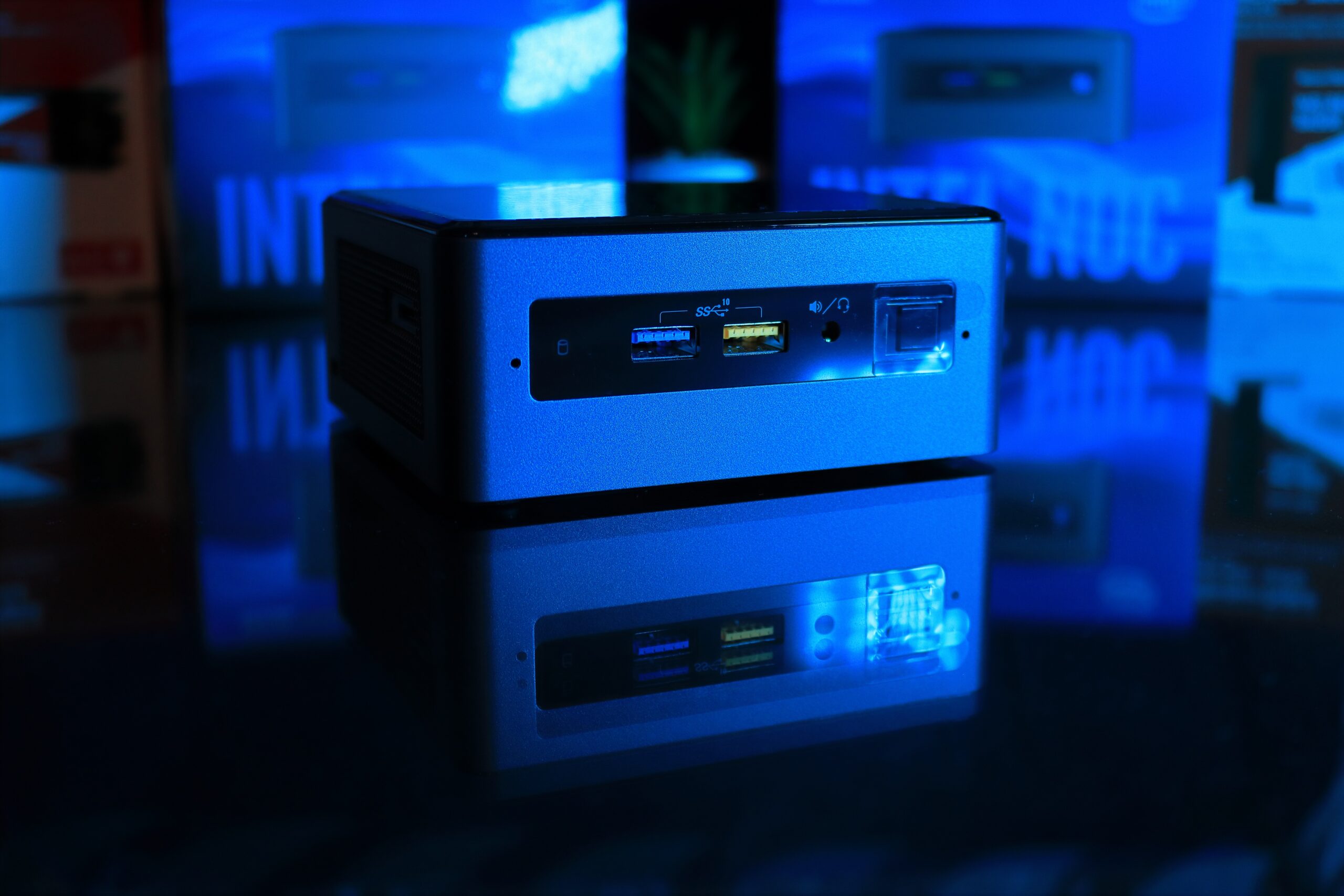
Preparation
Before starting, gather the right components for your mini PC AI server. Opt for a model with at least an Intel Core i7 or AMD Ryzen 7 processor, 32GB DDR5 RAM (upgradeable to 64GB), and a 1TB NVMe SSD. Look for integrated NPUs like Intel’s Lunar Lake or AMD’s XDNA for efficient AI workloads, or discrete GPUs like NVIDIA RTX 4060 for CUDA support.
Software-wise, you’ll need a Linux distribution such as Ubuntu 24.04 LTS for stability and broad driver support. Ensure your mini PC has Wi-Fi 6E or Ethernet for network access, multiple USB ports including Type-C, and TPM 2.0 for secure boot. Download tools like Ollama, Docker, and NVIDIA drivers in advance. Budget for a good cooling pad if your mini PC runs hot during inference.
Backup any data on your mini PC, as the setup may involve a clean OS install. Test peripherals like monitors and keyboards. With these ready, you’re set for a smooth process.
Step-by-Step Setup Guide
Follow these detailed steps to build your home AI server. We’ll use Ubuntu and Ollama for simplicity, but adapt as needed.
- Install Ubuntu: Create a bootable USB with Rufus or Etcher. Boot from it (enter BIOS with F2/Del), select “Try Ubuntu” first to test hardware, then install. Choose full disk encryption and enable secure boot with TPM 2.0 for cybersecurity.
- Update the system: Open Terminal (Ctrl+Alt+T) and run
sudo apt update && sudo apt upgrade -y. Reboot. Install essentials:sudo apt install curl git build-essential. - Set up NVIDIA drivers (if applicable): Add the graphics-drivers PPA with
sudo add-apt-repository ppa:graphics-drivers/ppa, update, thensudo ubuntu-drivers autoinstall. Verify withnvidia-smi. - Install Docker: Follow official docs –
curl -fsSL https://get.docker.com -o get-docker.sh && sudo sh get-docker.sh. Add your user to docker group:sudo usermod -aG docker $USER, log out/in. - Install Ollama: Run
curl -fsSL https://ollama.com/install.sh | sh. Start service:systemctl start ollama. Pull a model:ollama pull llama3. Test withollama run llama3 "Hello, AI!". - Install Open WebUI: Use Docker for a browser interface –
docker run -d -p 3000:8080 --add-host=host.docker.internal:host-gateway -v open-webui:/app/backend/data -e OLLAMA_BASE_URL=http://host.docker.internal:11434 --name open-webui --restart always ghcr.io/open-webui/open-webui:main. Access at http://localhost:3000. - Configure networking: Edit /etc/hosts for local access, set up firewall with
sudo ufw allow 11434,3000andsudo ufw enable. For remote access, use Tailscale or WireGuard VPN. - Secure it: Enable AppArmor, set up fail2ban (
sudo apt install fail2ban), and use HTTPS via Caddy reverse proxy. Monitor with Prometheus or Glances.
Optimization Tips
Maximize your mini PC AI server’s performance with these tips:
- Overprovision RAM: Aim for 64GB to load larger models without swapping. Use zram for compression.
- Leverage NPU: For Intel/AMD mini PCs, use OpenVINO or ROCm to offload inference from CPU/GPU.
- Cooling matters: Add external fans or undervolt CPU via intel-undervolt tool to prevent throttling.
- Storage tweaks: Use tmpfs for /tmp, RAID0 SSDs for speed, and prune old models with
ollama rm. - Batch processing: Run multiple models via Modelfile customization for efficiency.
- Power management: Set governor to performance mode –
cpupower frequency-set -g performance. - Monitor resources: Install htop, nvtop, and set alerts for high usage.
Troubleshooting
Encounter issues? Here’s how to fix common problems:
No GPU detection: Reinstall drivers, check PCIe passthrough if virtualized. Run lspci | grep VGA.
Ollama crashes: Increase ulimits (ulimit -n 65536), check logs with journalctl -u ollama.
High latency: Quantize models (e.g., Q4_K_M), close background apps, ensure good cooling.
Network blocks: Verify ports, disable IPv6 if issues, test with curl http://localhost:11434.
Overheating: Monitor temps with lm-sensors, repaste thermal compound if needed.
Final Thoughts
Setting up an AI server at home with a mini PC opens doors to private, powerful computing. You’ve now got a cybersecurity-hardened setup ready for AI experiments, from chatbots to data analysis. We recommend starting small, scaling models as you go, and integrating with home automation for fun projects.
For cybersecurity pros, add intrusion detection with Snort; gamers can offload Stable Diffusion. Students, use it for homework acceleration. Visit our blog for more guides on mini PCs and AI servers.
FAQs
Can any mini PC run an AI server?
No, choose ones with strong CPUs, ample RAM (32GB+), and NPU/GPU support for smooth performance.
Is Ubuntu the best OS for this?
Yes, for stability and driver support, but Fedora or Debian work too. Avoid Windows for server efficiency.
How much power does it consume?
Idle: 20-50W; under load: 100-300W depending on GPU usage. Energy-efficient for home use.
Can I access it remotely securely?
Yes, use VPNs like WireGuard, SSH tunneling, or Tailscale. Always enable firewall rules.
What AI models should I start with?
Llama 3 8B or Phi-3 for mini PCs; scale to 70B on beefier setups with quantization.



Write Your Review
No reviews yet. Be the first to share your experience!