

Mini PCs have evolved into compact powerhouses capable of handling demanding AI workloads, thanks to advancements in processors with dedicated NPUs, ample DDR5 RAM, and fast NVMe SSDs. In 2026, running AI tools locally on a mini PC offers significant advantages: enhanced privacy by avoiding cloud services, lower latency for real-time tasks, and cost savings over expensive servers. Whether you are a cybersecurity professional analyzing threats with machine learning models, a student experimenting with generative AI for projects, or a gamer enhancing setups with AI upscaling, this guide is for you.
Local AI deployment addresses key concerns in cybersecurity, like data sovereignty and reduced attack surfaces from external APIs. Tools such as Ollama for large language models or Stable Diffusion for image generation can transform your mini PC into an AI server. No more dependency on internet connectivity or subscription fees. We will walk you through preparation, installation, configuration, and optimization.
Check out our blog for more insights on cybersecurity hardware and mini PCs tailored for AI and gaming.
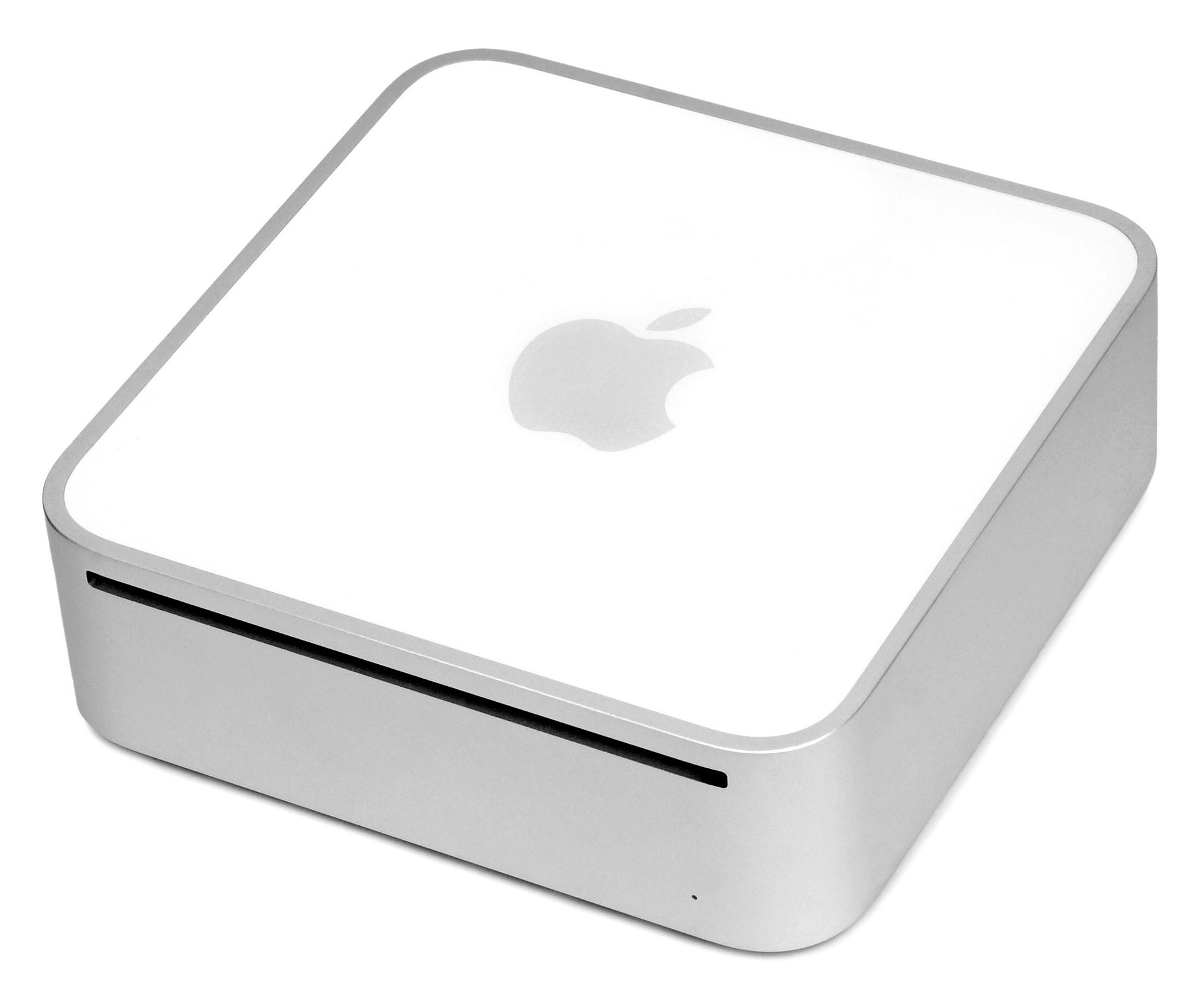
Preparation
Before diving into how to install and configure ai tools on mini pc, ensure your mini PC meets the minimum requirements for smooth AI performance. Look for models with Intel Core Ultra or AMD Ryzen AI series processors featuring integrated NPUs for efficient AI acceleration. Aim for at least 16GB of DDR5 RAM (32GB preferred for larger models) and a 512GB NVMe SSD for quick data access. Wi-Fi 6E and TPM 2.0 add security and connectivity benefits, crucial for cybersecurity setups.
Back up any existing data, as OS reinstallation may be needed. Choose an operating system: Ubuntu 24.04 LTS for its security features and stability in AI environments, or Windows 11 for broader software compatibility. Download the ISO from official sources. You will need a USB drive (8GB+), Rufus or Etcher for bootable media creation, and basic tools like a screwdriver for any hardware checks.
Verify BIOS settings: enable Secure Boot with TPM 2.0, set RAM to full speed (e.g., 5600MHz), and check for NPU enablement. Update firmware via manufacturer tools if available. Test power supply adequacy, as AI tasks can spike usage.
Step-by-Step Setup Guide
Install the Operating System: Boot from the USB drive by entering BIOS (usually F2 or Del key). Select the USB, install Ubuntu or Windows, and partition the NVMe SSD (allocate 100GB+ for root). Enable full-disk encryption with LUKS for cybersecurity. Reboot and complete initial setup, including user account with sudo privileges.
Update System and Install Essentials: Open terminal (Ctrl+Alt+T on Ubuntu). Run
sudo apt update && sudo apt upgrade -y. Install prerequisites:sudo apt install curl wget git build-essential python3 python3-pip docker.io. For Windows, use PowerShell:winget upgrade --alland install WSL2 if dual-booting Linux.Install GPU/NPU Drivers: For Intel/AMD integrated graphics, install Mesa drivers:
sudo apt install mesa-vulkan-drivers intel-opencl-icd. If your mini PC has discrete NVIDIA (e.g., RTX via eGPU), add CUDA: Download from NVIDIA site, run installer. Verify withnvidia-smi. Enable NPU via oneAPI for Intel or ROCm for AMD.Install Ollama for LLMs: Curl the installer:
curl -fsSL https://ollama.com/install.sh | sh. Start service:ollama serve. Pull a model:ollama pull llama3. Test in browser at localhost:11434 or CLI chat.Set Up Stable Diffusion: Clone Automatic1111 repo:
git clone https://github.com/AUTOMATIC1111/stable-diffusion-webui.git. Run./webui.sh --xformers(install xformers first for memory efficiency). Access web UI at localhost:7860. Download models to models/Stable-diffusion folder.Configure PyTorch/TensorFlow: Pip install:
pip3 install torch torchvision torchaudio --index-url https://download.pytorch.org/whl/cu121(adjust for CUDA). For TensorFlow:pip install tensorflow[and-cuda]. Test import in Python: no errors means success.Integrate Docker for Isolation: For cybersecurity, containerize apps. Pull images:
docker pull ollama/ollama. Run with GPU:docker run -d --gpus=all -v ollama:/root/.ollama -p 11434:11434 ollama/ollama. Enhances security with namespaces.Test and Benchmark: Run Ollama benchmark, generate images in SD, train a small model. Monitor with
htop,nvidia-smi. Adjust VRAM limits if needed.
Optimization Tips
- Enable Huge Pages in kernel for better memory handling:
echo always | sudo tee /sys/kernel/mm/transparent_hugepage/enabled. - Use quantization (e.g., GGUF models in Ollama) to run larger LLMs on 16GB RAM.
- Overprovision swap on SSD for OOM protection, but prioritize RAM upgrades.
- Configure power profiles for sustained boosts: Use TLP on Linux for balanced cooling.
- Leverage NPU for inference: Tools like OpenVINO optimize Intel hardware.
- Network isolation: Run AI services on localhost only, firewall ports with ufw.
- Regular updates and vulnerability scans with tools like Trivy for Docker images.
Troubleshooting
If Ollama fails to start, check logs with journalctl -u ollama – often port conflicts or missing libs. GPU not detected? Reinstall drivers and reboot. Out-of-memory errors? Reduce model size or batch (e.g., –num_inference_threads 4). For Windows WSL issues, ensure NVIDIA CUDA on WSL enabled.
Slow performance? Monitor thermals – clean vents, use cooling pads for mini PCs. Secure Boot blocking? Disable temporarily or sign modules. Network timeouts in Docker? Bind to 127.0.0.1 explicitly. Cybersecurity tip: Audit installed packages with apt list --installed post-setup.
Final Thoughts
With this guide, your mini PC is now a versatile AI workstation, ideal for cybersecurity analysis, student projects, gaming enhancements, or even a compact AI server. Local AI empowers you with control, speed, and privacy. Experiment, monitor resources, and scale as needed. Stay secure and innovative!
FAQs
What are the best specs for how to install and configure ai tools on mini pc?
16GB+ DDR5 RAM, NPU-equipped CPU, NVMe SSD for optimal AI performance.
Can I run AI tools on Windows mini PCs?
Yes, via WSL2 or native installs, but Linux offers better efficiency and security.
Is Docker necessary for AI tools?
Not always, but recommended for isolation and easy management in cybersecurity contexts.
How much power does AI on mini PC consume?
Typically 50-150W under load, depending on model and tasks.
Are there security risks with local AI?
Minimal if containerized and updated; use TPM for model encryption.



Write Your Review
No reviews yet. Be the first to share your experience!