

In today’s connected world, your home WiFi network is the gateway to all your smart devices, from laptops and smartphones to security cameras and smart thermostats. But with great connectivity comes great risk. Hackers are constantly probing for weak spots in unsecured networks, potentially stealing personal data, hijacking your bandwidth, or even taking control of your IoT devices. In 2026, cyber threats have evolved, making it more crucial than ever to fortify your WiFi defenses.
This comprehensive guide on How To Secure Home WiFi Network And Protect Against Hackers will walk you through everything you need to know. Whether you’ve just set up a new router or your current setup feels outdated, these steps will help you lock down your network. We’ll cover preparation, detailed instructions, optimization tips, and more. For more networking advice, check out our blog.
By the end, you’ll have a secure home WiFi that stands strong against common attacks like brute-force password cracking, man-in-the-middle exploits, and unauthorized access. Let’s dive in and make your network hacker-proof.
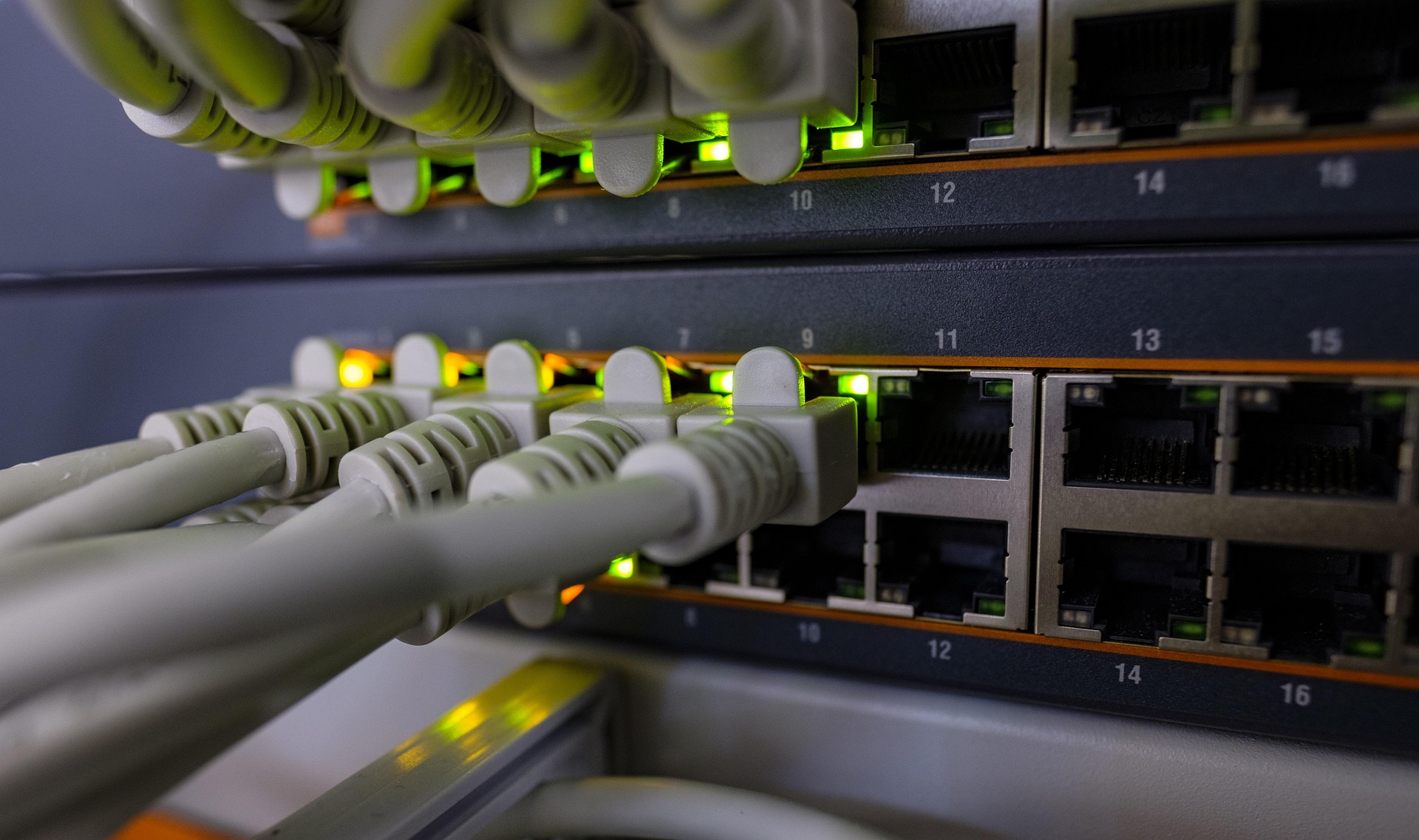
Preparation: What You Need Before Securing Your WiFi
Before jumping into the steps, gather the essentials to ensure a smooth process. You’ll need administrative access to your router, which typically involves knowing the default login credentials found on the router’s label or manual.
- A computer or smartphone connected to your WiFi network.
- Ethernet cable for a stable wired connection (recommended).
- Your router’s IP address, usually 192.168.0.1 or 192.168.1.1.
- Current firmware details and admin password.
- Backup of your current settings (most routers have an export option).
Pro tip: Disconnect unnecessary devices during setup to avoid interruptions. If you’re using a mesh WiFi system, ensure all nodes are powered on and synced.
Step-by-Step Guide to Secure Your Home WiFi Network
Follow these 7 key steps in order. Each one builds on the last for layered protection. Access your router’s admin panel by entering its IP address in a web browser while connected.
- Change the Default Admin Password: Default credentials like “admin/admin” are the first target for hackers. Navigate to the administration or management section, create a strong password (12+ characters, mix of letters, numbers, symbols). Write it down securely.
- Update Router Firmware: Manufacturers release patches for vulnerabilities. Check the firmware update page, download the latest version from the official site (e.g., TP-Link, Netgear), and apply it. Reboot afterward. Warning: Use only official files to avoid malware.
- Switch to WPA3 Encryption: If your router and devices support it, enable WPA3 Personal or Enterprise over WPA2. Find the wireless security settings. WPA3 uses stronger handshakes resistant to offline dictionary attacks.
- Hide Your SSID: Broadcasting your network name makes it easy to spot. Disable SSID broadcast so only known users can connect manually. Users will need to enter the network name exactly.
- Enable Guest Network: Isolate visitors on a separate network with its own password. Limit bandwidth and time access if possible. This prevents guests from accessing your main devices.
- Enable MAC Address Filtering: Create a whitelist of approved device MAC addresses. New devices require manual approval. Note: Savvy hackers can spoof MACs, so use as a secondary layer.
- Activate Built-in Firewall and DoS Protection: Most modern routers have SPI firewalls and Denial-of-Service shields. Enable them, along with features like UPnP disable (unless needed) and remote management off.
After completing these, reboot your router and test connectivity. Your network is now significantly hardened.
Optimization and Troubleshooting Tips for Maximum Protection
Securing your WiFi is ongoing. Here are 6 practical tips to maintain and enhance protection.
- Regularly Monitor Connected Devices: Use your router’s dashboard to review active users. Log out unknowns immediately and change passwords.
- Choose Optimal WiFi Channels: Use tools like WiFi Analyzer apps to select less crowded channels (1, 6, 11 for 2.4GHz; auto for 5GHz). Reduces interference and eavesdropping risks.
- Disable WPS and UPnP: WiFi Protected Setup is vulnerable to PIN brute-forcing. Turn it off unless essential.
- Set Up a VPN on Your Router: If supported (common in WiFi 6/7 routers), enable VPN server/client for encrypted traffic. Protects against ISP snooping and public WiFi risks at home.
- Enable QoS and Device Prioritization: Prevent bandwidth hogs, which could indicate compromise. Prioritize critical devices like security cams.
- Conduct Periodic Security Audits: Use free tools like router password checkers or scan for open ports with apps like Fing. Update passwords every 3-6 months.
Checklist: Firmware current? Encryption WPA3? SSID hidden? Firewall on? Run this monthly for peace of mind.
| Tip | Why It Matters |
| Channel Selection | Avoids interference |
| VPN Enable | Encrypts all traffic |
| Device Monitoring | Detects intruders |
Final Thoughts on How To Secure Home WiFi Network And Protect Against Hackers
Securing your home WiFi network against hackers doesn’t require expensive gear—just consistent effort with these steps. From changing defaults to enabling WPA3 and firewalls, you’ve now built robust defenses suitable for 2026’s threats. Modern WiFi 6 and WiFi 7 routers with MU-MIMO, Beamforming, and advanced security make this even easier.
Upgrade if your router lacks WPA3 support, has outdated firmware, or struggles with coverage. Look for models with automatic updates and guest networks. For more insights, visit our blog.
FAQs: How To Secure Home WiFi Network And Protect Against Hackers
1. How often should I change my WiFi password?
Change it every 3-6 months or after any suspected breach. Use a password manager for strong, unique passphrases. This thwarts long-term attacks in 2026.
2. Is WPA3 necessary, or is WPA2 enough?
WPA3 offers superior protection against brute-force and downgrade attacks. If your devices support it, switch now. WPA2 is a fallback but less secure long-term.
3. Can hiding SSID stop all hackers?
No, but it reduces visibility to casual scanners. Combine with MAC filtering and strong encryption for better results.
4. What if I forget my router admin password?
Perform a factory reset via the reset button (hold 10 seconds). Reconfigure from scratch, and immediately secure it per this guide.



Write Your Review
No reviews yet. Be the first to share your experience!